Welcome to the all-new Litter section — rebuilt to give you a more complete and organised way to manage your litters, from birth records through to registration.
What you can do from the dashboard
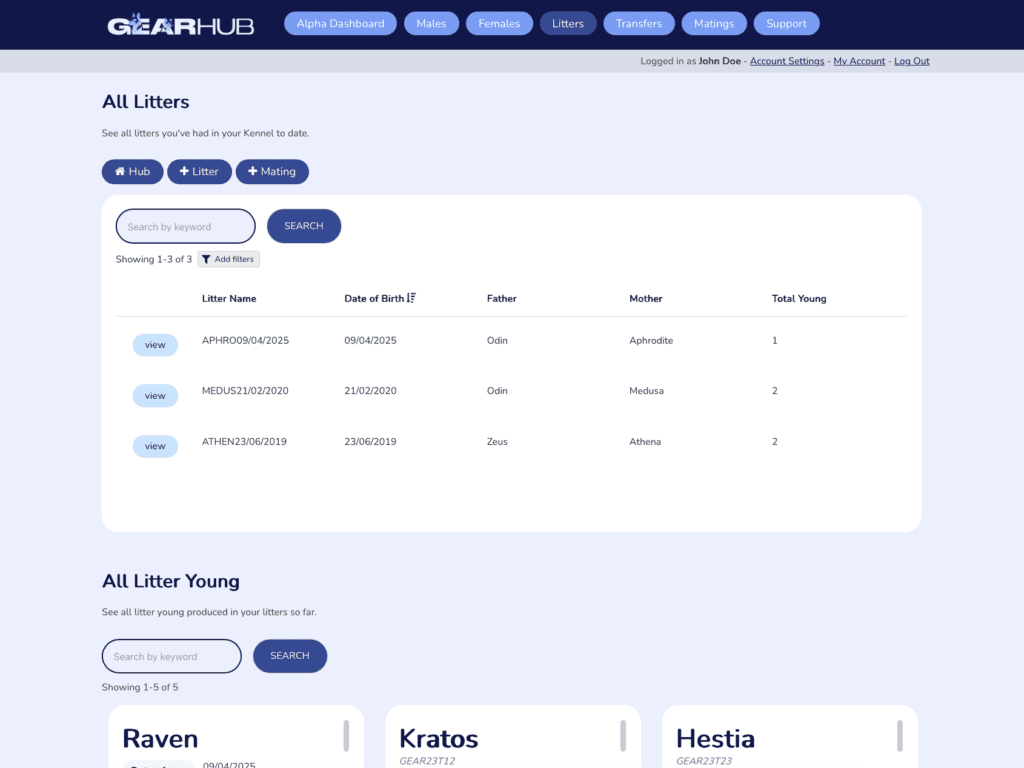
The Litter section landing page gives you quick access to everything you need:
Add a new Litter
Add a new Mating
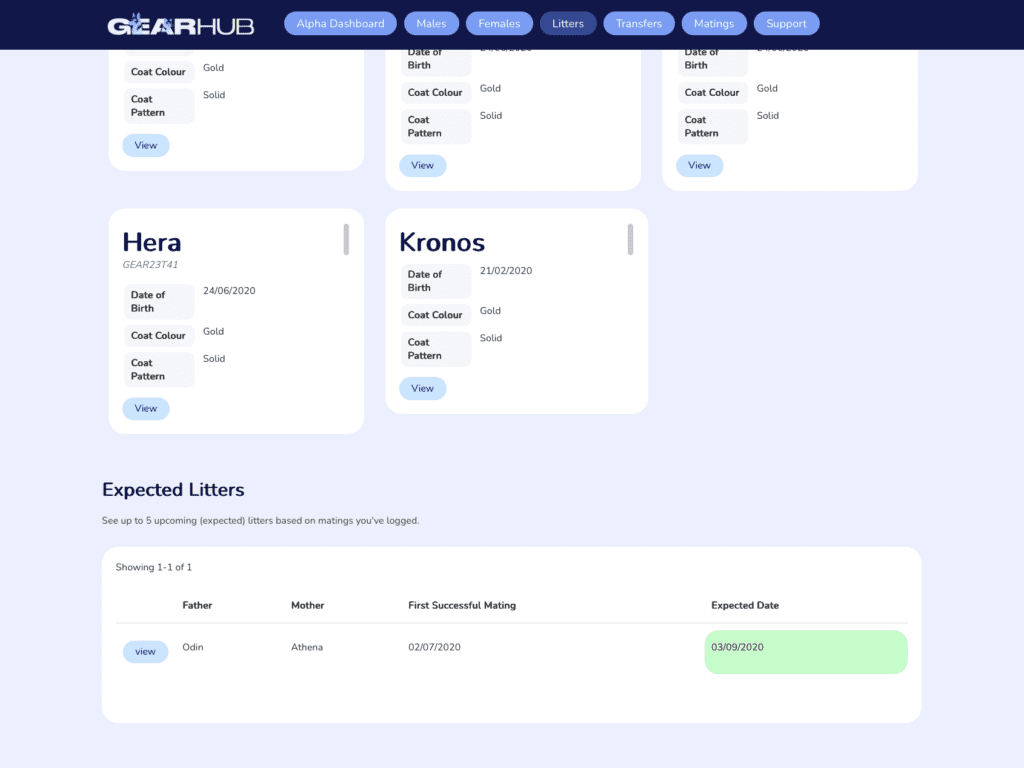
View up to 5 upcoming litters at a glance
Browse all litters added to the system
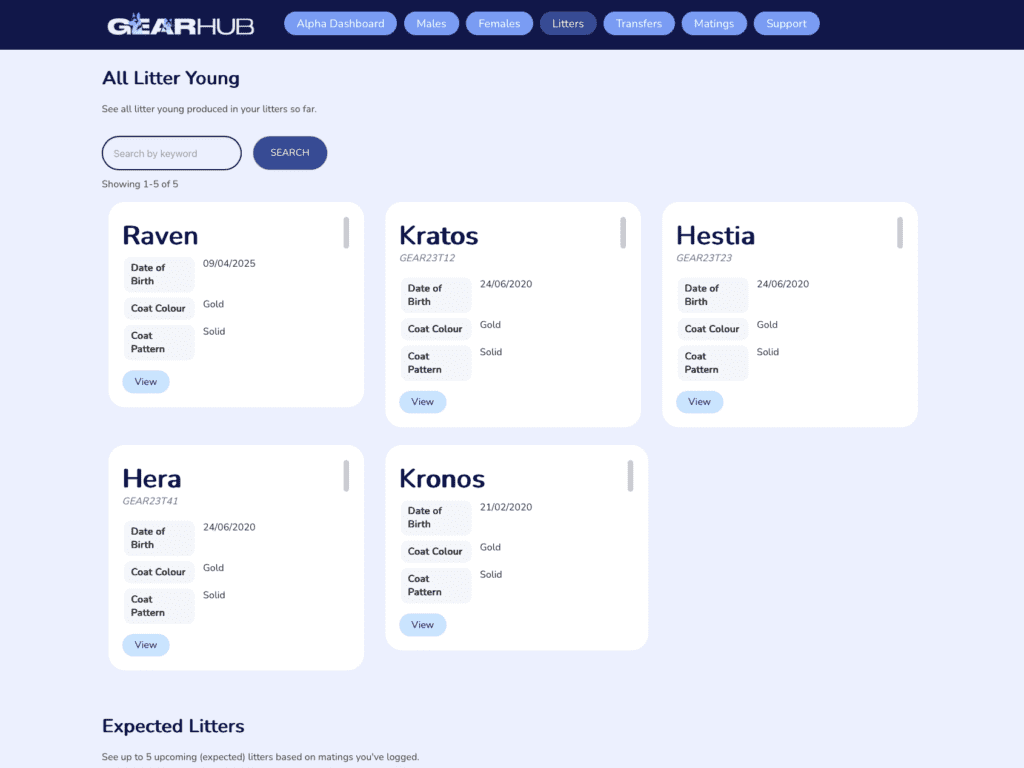
Search for any litter young by name or details
Adding a new litter
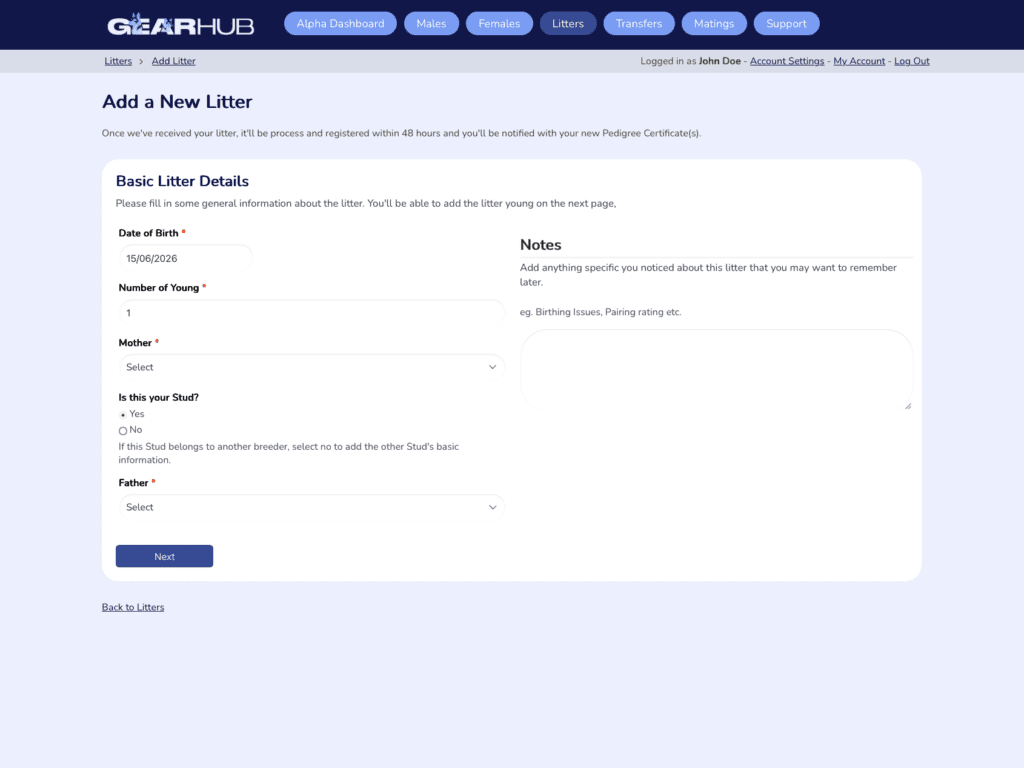
Click Add Litter to get started. The first form captures the core details of the litter:
Date of Birth
Number of Young
Mother
Father
Notes
The Notes field is there for anything additional you’d like to record against the litter. Once you’ve filled in the basics, click Next to begin adding the individual litter young.
Adding litter young
Adding Litter Young
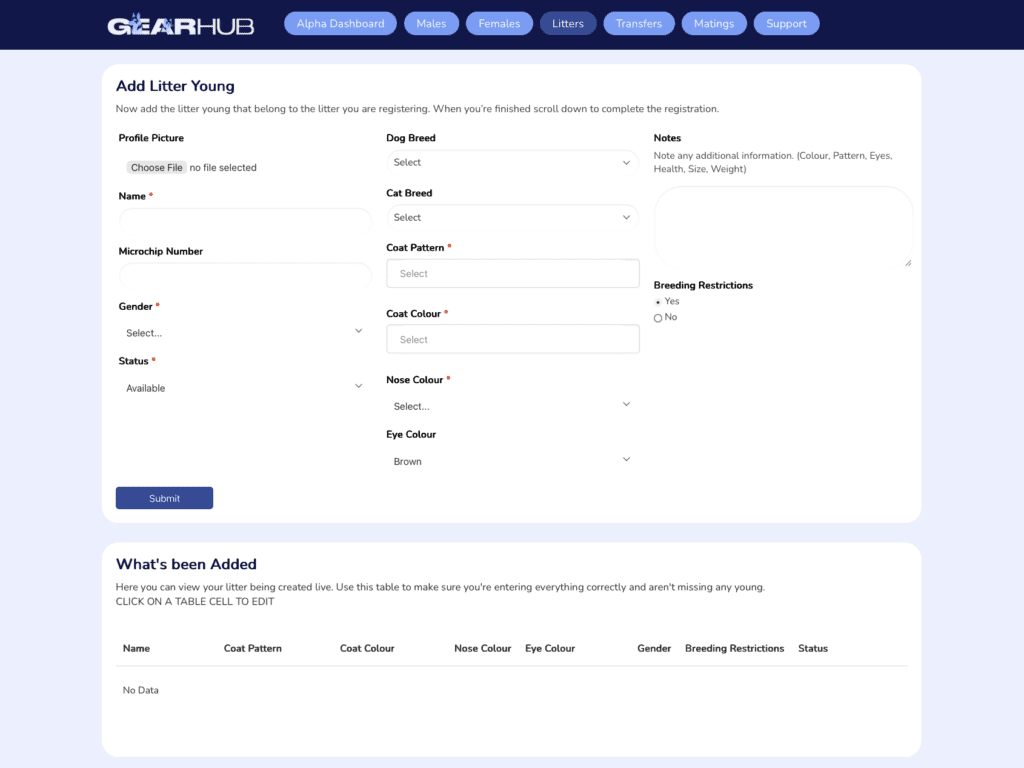
Each young is added individually with their own set of details:
Profile Picture
Name
Microchip
Gender
Status
Coat Pattern
Coat Colour
Nose Colour
Eye Colour
Notes
Breeding Restrictions
The Profile Picture is particularly important — this is the photo that will appear on the Pet Finder page, so use clear, natural photos and avoid heavily edited images.
Managing Each Young’s Status
The Status field lets you track each young individually as circumstances change. The available statuses are:
Available
Booked
Sold
Swapped
Passed
Keep
Once you’ve completed a young’s details, click Submit. The form will reset so you can add the next one. Each submitted young will appear in the What’s Been Added section below the form, where you can make quick corrections by clicking on any field that needs updating. Once all young have been added, click Finalise to complete the litter.
When adding a new litter, make sure to capture all of the young from that litter before finalising. Keep in mind that litter young are not automatically registered upon being added — you’re free to register each one whenever the time is right.
Viewing and registering the litter
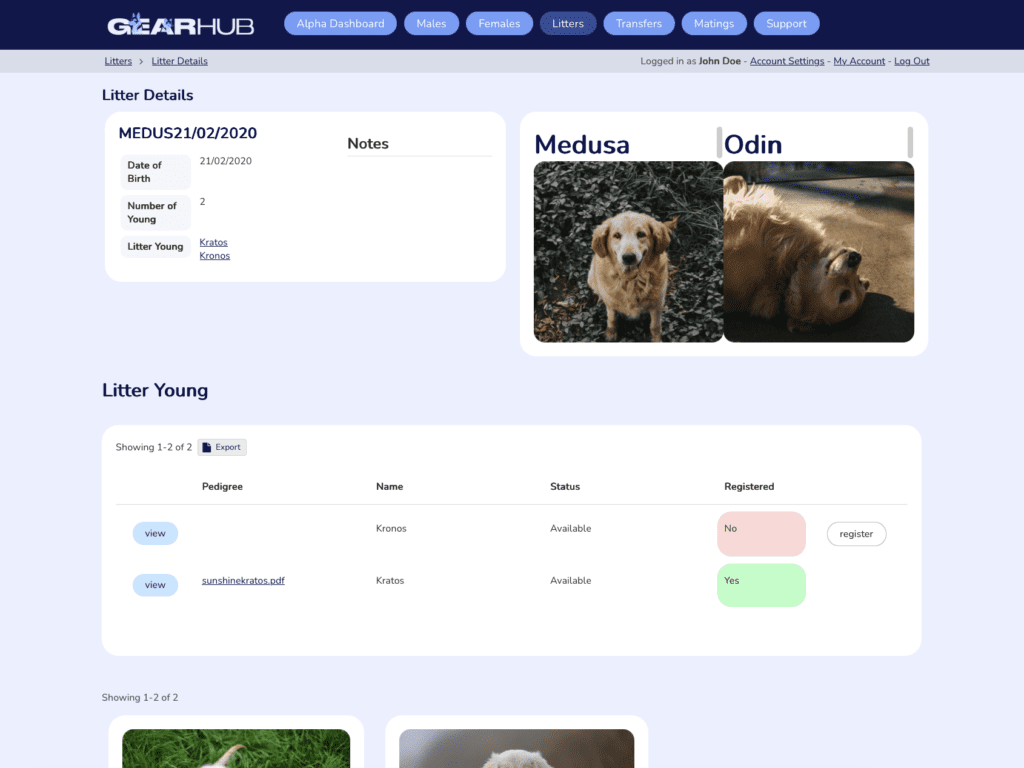
Once finalised, your litter will appear in the All Litters card on the Litter section landing page. Click into the litter to open the full view, where you’ll see the parents and a list of all young in that litter.
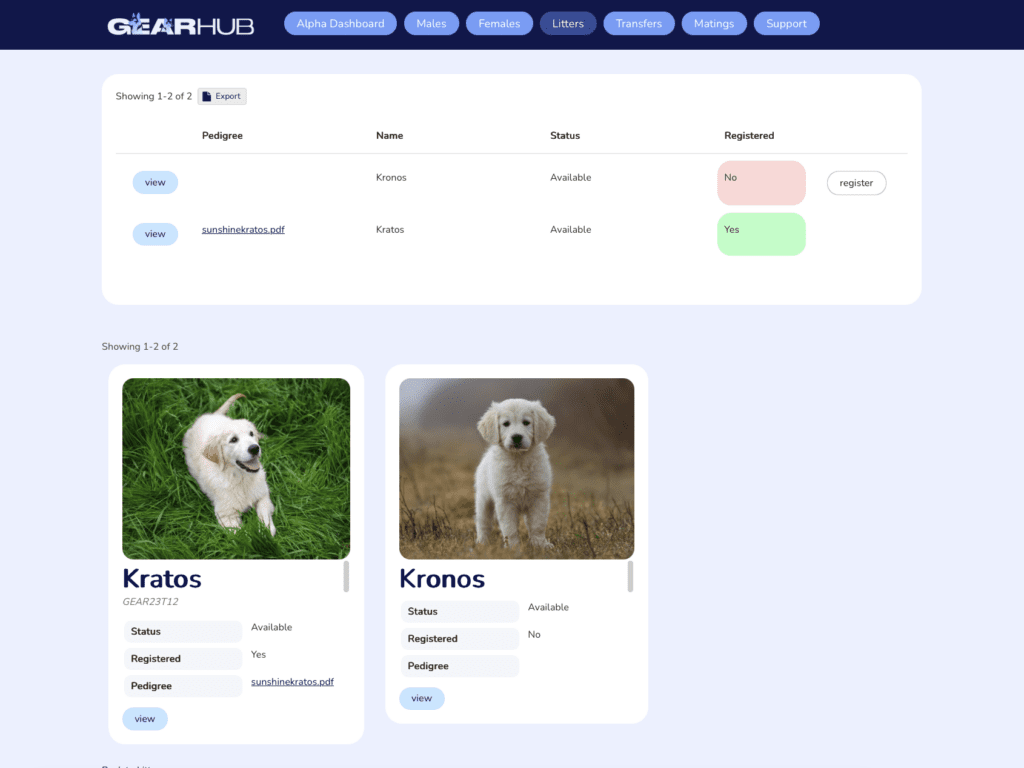
Each young will display a Register button alongside their current registration status. Litter young are not registered automatically — you’ll need to click Register for each young you’d like to register.
From the litter view you can also open individual young profiles. Each profile displays all recorded details and allows you to update their status, swap out their profile picture, and add or edit notes. You’ll also see a list of litter siblings, each with a View button for quick access.
Wrapping up
The new Litter section brings everything together in one place — from recording a new litter and managing each young’s journey, through to registration and Pet Finder visibility. If you need further assistance, browse the other tutorials or log a support message and the team will be happy to help.